How to import samples into the HPD-20
The HPD-20 can play your own sounds alongside its 849 built-in instruments: a finger snap, an egg shaker, an ocean drum, a vocal shout or a whole loop. Here's how to get them in.
1. Get the files in the right format
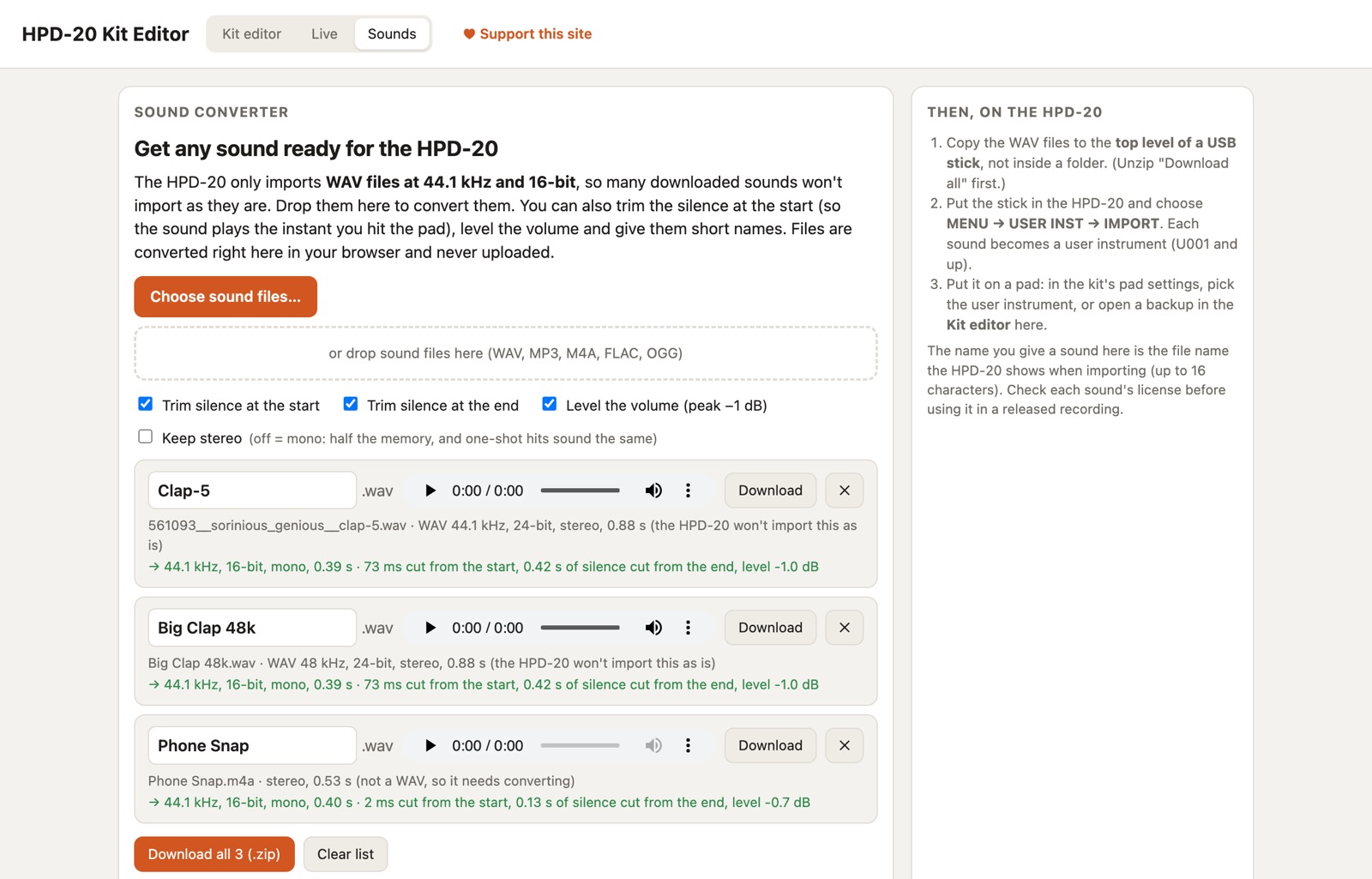
The HPD-20 only imports WAV files at 44.1 kHz, 16-bit, mono or stereo, up to 6 minutes each. Many sounds you download are 48 kHz or 24-bit, or MP3, and won't import as they are.
Use the free sound converter Drop in WAV, MP3, M4A, FLAC or OGG files and get files the HPD-20 accepts. It can also trim the silence at the start (so the sound plays the instant you hit the pad), level the volume and give each file a short name. It runs in your browser; nothing is uploaded.
2. Copy them to a USB stick
Put the WAV files at the top level of the stick, not inside a folder. The HPD-20 lists up to 1,000 files. The file name is what you'll see when importing, so short names work best.
3. Import on the HPD-20
- Plug the stick into the HPD-20's USB MEMORY port.
- Choose MENU → USER INST → IMPORT.
- Pick a file and the user instrument number to import it to. The HPD-20 suggests the next empty one (for example U042), so nothing is overwritten.
4. Put the sound on a pad
Imported sounds are user instruments (U001 and up), listed after the built-in sounds. Choose one for a pad in the HPD-20's pad settings, or open a backup in the kit editor.
Tips
- Use mono for one-shots like snaps, claps and shakers. They sound the same from a pad and use half the memory.
- Trim the silence at the start. Even 50 ms of silence makes a sound feel late when you hit the pad.
- Save a backup without user samples after importing. Loading that kind of backup later won't touch your imported sounds.
- Check the license. Free sounds on sites like Freesound are often CC0 (use anywhere), but some ask for credit.
Questions
- What audio format does the HPD-20 import?
- WAV files at 44.1 kHz and 16-bit, mono or stereo, up to 6 minutes long each. MP3, AIFF, 48 kHz and 24-bit files won't import until they're converted.
- Why won't my WAV file import into the HPD-20?
- Most often the file is 48 kHz or 24-bit, which is common for downloaded samples. Convert it to 44.1 kHz, 16-bit with the free sound converter. Also make sure the file is at the top level of the USB stick, not in a folder.
- Where do imported sounds go?
- Each imported sound becomes a user instrument (U001, U002 and so on), listed after the 849 built-in instruments. You can put it on any pad like a built-in sound.
- Will loading a backup erase my imported sounds?
- A full backup includes user samples, so loading an older full backup can replace the sounds you've imported since. When saving, you can choose a backup without user samples; loading that kind leaves your imported sounds alone. See the HPD-20 backup guide.