HPD-20 backup and restore
A backup on a USB stick holds all 200 kits and your settings, so you can undo changes, move kits between HPD-20s, or edit kits on a computer.
Save a backup
- Plug a USB stick into the HPD-20's USB MEMORY port.
- Choose MENU → SYS → USB Memory → Save Backup and pick a backup number.
- The file is saved on the stick as
Roland/HPD-20/Backup/BKUP-001.HS0(with your number).
Load (restore) a backup
- Put the stick with the backup in the HPD-20.
- Choose MENU → SYS → USB Memory → Load Backup and pick the number.
- To load the imported sounds in a full backup too, keep Include user inst checked. That takes longer than loading kits only.
- Loading replaces the HPD-20's kits and settings with the backup's, so save a fresh backup first if you might want to go back.
If a pad that should play an imported sound shows <no inst> after loading, load the same backup again with Include user inst checked. Once in a while the HPD-20 loads the kits but keeps its old sounds.
Two kinds of backup
| Kind | Size | Contains |
|---|---|---|
| Full backup | about 27 MB | All 200 kits, settings and your imported sounds (user samples) |
| Without user samples | about 280 KB | All 200 kits and settings only |
Keeping imported sounds safe: loading an older full backup can replace the sounds you've imported since it was saved. After importing new sounds, save backups without user samples; loading one of those changes your kits and leaves your sounds alone.
Edit a backup on a computer
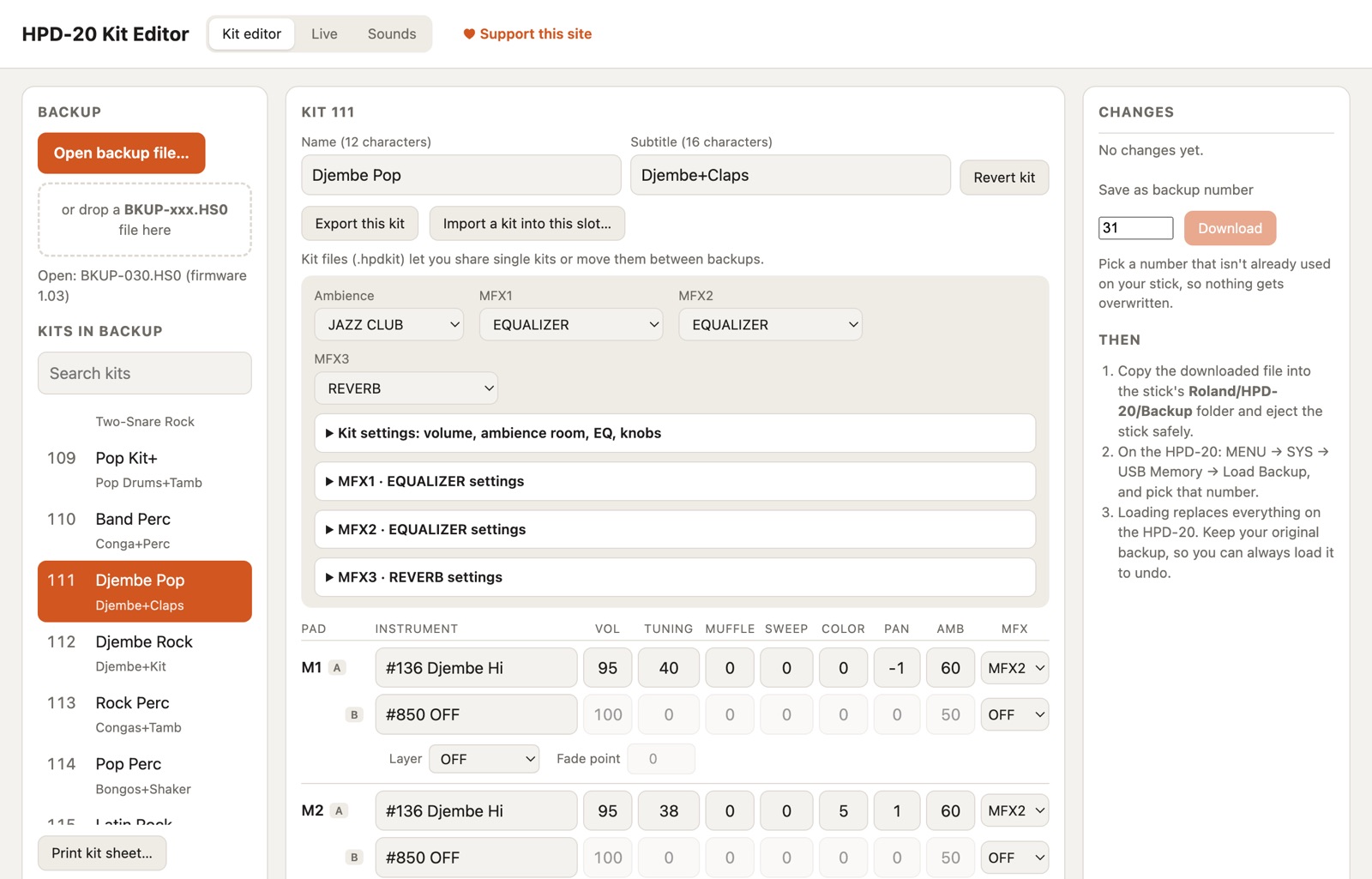
The free HPD-20 Kit Editor opens both kinds of backup right in your browser. Change instruments, layers, tuning, muffling, pan, effects and kit names on a full-size screen, export and import single kits, and print kit sheets. Save under a new number so the original stays as your undo.
Firmware updates
Roland's latest HPD-20 system program is version 1.04. Check yours on the HPD-20 with MENU → SYS → Information. If it already says 1.04, there's nothing to do. Version 1.04 only changes the default Auto Off time; the sounds are the same as 1.03.
HPD-20 System Program 1.04 on Roland's site
- Save a backup first. Roland recommends it before any update.
- Roland's page has the download and the step-by-step instructions. You'll copy one file from the download to a USB stick and start the update from the HPD-20.
- Don't turn the HPD-20 off during the update. A power loss mid-update can mean a trip to a Roland service center.
- Roland lists its own USB drives (M-UF1G, M-UF2G) for updating. If the update doesn't see your stick, try one of those.
Good habits
- Keep your very first backup. It's your way back to a known-good HPD-20.
- Use a new number for every save; the HPD-20 can hold many backups on one stick.
- Copy the Backup folder to your computer now and then, in case the stick is lost.
Questions
- How do I back up my HPD-20?
- Plug a USB stick into the HPD-20's USB MEMORY port and choose MENU → SYS → USB Memory → Save Backup. The backup is saved as Roland/HPD-20/Backup/BKUP-001.HS0 (or the next number) on the stick.
- How do I restore an HPD-20 backup?
- Put the stick with the backup file in the HPD-20 and choose MENU → SYS → USB Memory → Load Backup, then pick the backup number. Loading replaces the HPD-20's current settings with the backup.
- Can I edit an HPD-20 backup on a computer?
- Yes. Open the BKUP-xxx.HS0 file in the free HPD-20 Kit Editor to change pad sounds, layers, tuning, effects and kit names, then save it under a new backup number and load it on the HPD-20.
- What is the latest HPD-20 firmware?
- Version 1.04 of the HPD-20 system program, available from Roland's HPD-20 support page. Check your version with MENU → SYS → Information. Save a backup before updating.
- Why is my backup file much smaller than others?
- Backups saved without user samples are about 280 KB; full backups that include your imported sounds are about 27 MB. Both hold all 200 kits and your settings.